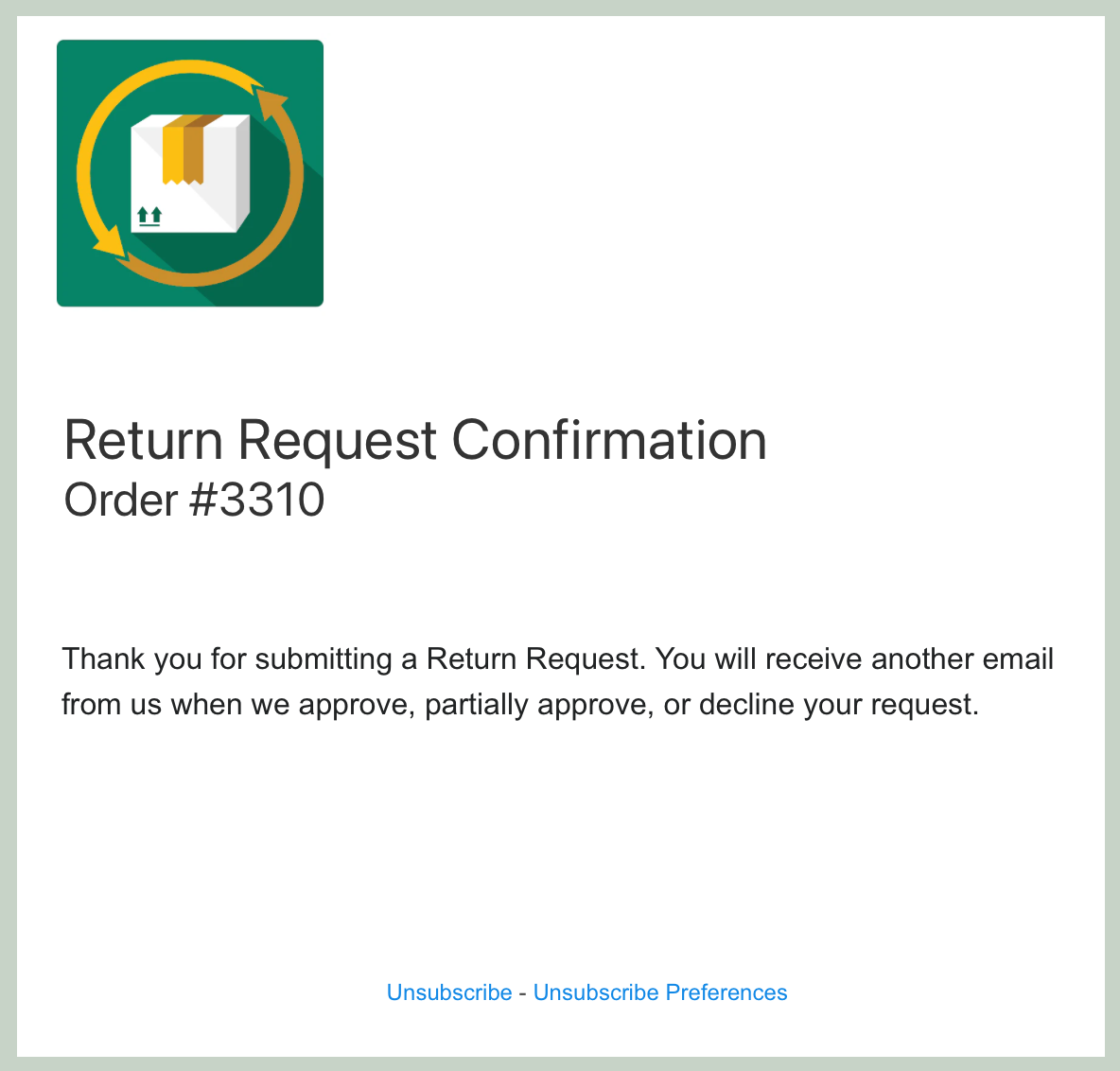
Request Confirmation Email Template
How to Edit the Request Confirmation Email
When a customer asks to return an item, the Request Confirmation Email is the first message they receive. It lets them know you are looking into their request. You can fully customize this email in Exchange It.
Step-by-Step Customization Guide
Step 1: Locate the Template
Open the Exchange It app.
Click on Settings.
Find the section titled Request Confirmation Email under the Notifications tab.
Step 2: Edit the Text
You can change the text to sound exactly like your brand:
Subject Line: Change the email subject to something welcoming. Note that the Order # is added automatically at the end.
Heading: This is the bold text at the top of the email.
Try: "We're on it!" or "Return Request Received."
Body: Tell the customer what happens next.
Try: "Thanks for your request. We just need to verify a few details and will get back to you shortly."
Step 3: Brand Your Email
Make your emails look professional by uploading your store logo.
Learn how: Adding your store logo to emails
Need to see it in action? Check out our quick tutorial: View Tutorial